Converting bank statement PDFs to Excel makes analysis, accounting, GST, and audit processes easy. Manual methods are inefficient for converting dozens of PDFs. Various methods help you convert a PDF to Excel.
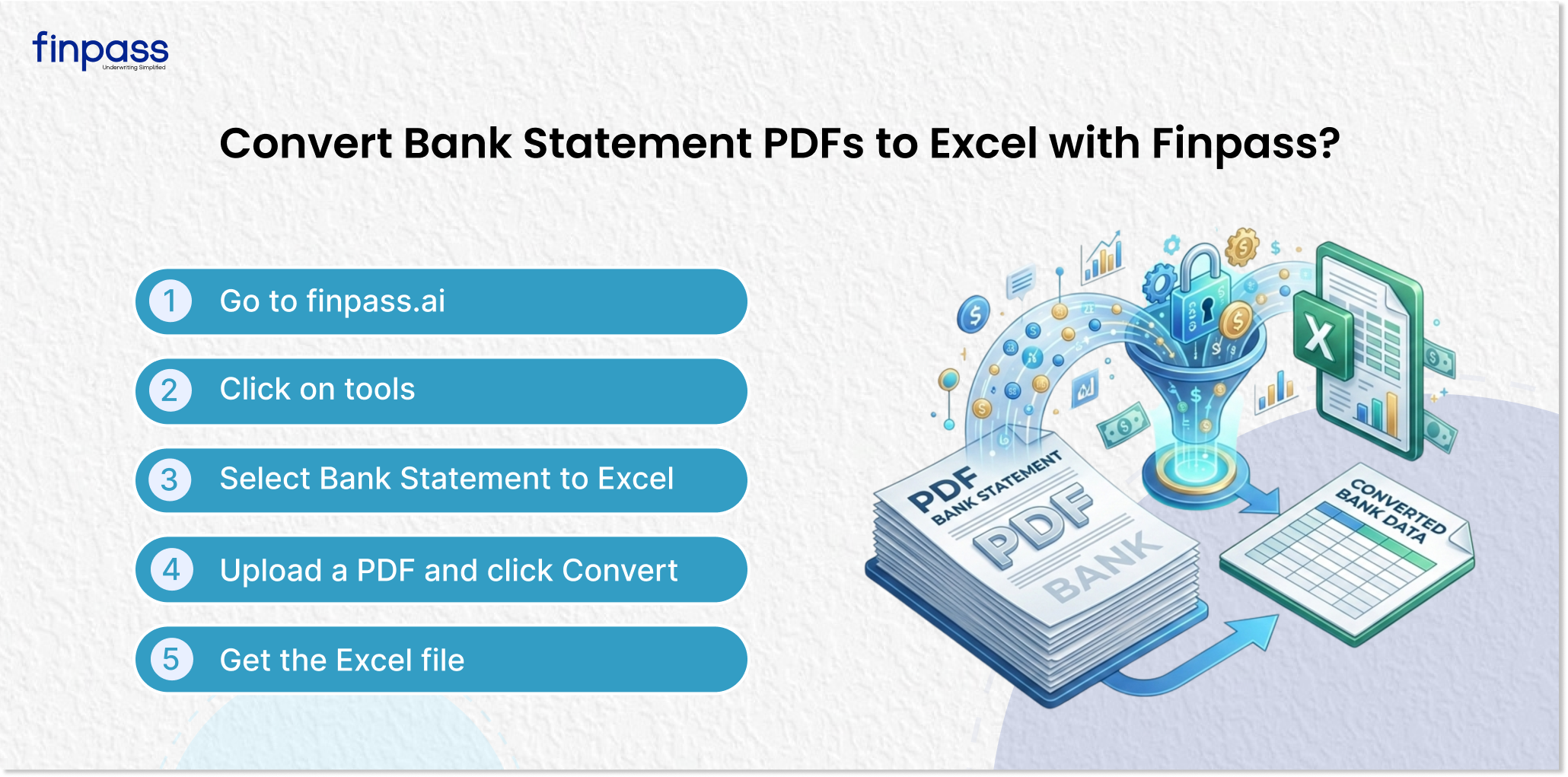
How to Convert Bank Statement PDFs to Excel?
Follow the methods below and convert bank PDFs to Excel easily.
Through the Bank Statement to Excel Converter Tool
Follow the steps below to convert a bank statement to Excel easily:
- Go to finpass.ai website
- Click on tools
- Select Bank to Excel
- Upload a PDF and click Convert
- Get the Excel file
Pros:
- Fast and automated conversion.
- 99% accurate results.
- Saves time for bulk PDF processing.
- Minimal manual effort required.
- Ideal solution for business (accounting, lending, GST).
Cons:
- May require sign-up or subscription.
- Internet Dependency.
- Data Privacy concerns when handling sensitive documents.
Manual Copy-Paste Method
Here is how you can convert PDF to Excel Manually:
- Open the PDF.
- Copy and paste each piece of information manually into the Excel file.
- Make format and rows manually.
Pros:
- Free of cost method.
- No tools or software required.
- Works for all types of PDFs.
Cons:
- Extremely time-consuming.
- High Chances of human error.
- Not Suitable for large or multiple files.
- Requires manual formatting and cleanup.
Through Microsoft Excel
- Open Microsoft Excel.
- Go to the Data tab.
- Click on “Get Data” → “From File” → “From PDF.”
- Select your bank statement PDF.
- Load the table into Excel.
- Clean and format data.
Pros
- Built-in feature (no extra tools needed)
- Good accuracy for text-based PDFs
- Direct import into structured tables
- Safer than online tools (local processing)
Cons
- Does not work well with scanned/image PDFs
- Requires newer Excel versions (Power Query)
- Some formatting cleanup is still needed
Comparison of Bank Statement PDF to Excel Conversion Methods
Feature/Method | Converter Tool | Manual Copy Paste | Microsoft Excel |
Ease of Use | Very easy (upload and convert) | Difficult (fully manual) | Moderate |
Time Required | Very fast (seconds) | Very slow (hours for large files) | Medium |
Accuracy | High (up to 99%) | Low (prone to human errors) | Good (for structured PDFs) |
Bulk Processing | Yes (ideal for multiple PDFs) | No | Limited |
Automated | Fully Automated | No Automation | Semi-Automated |
Data Formatting | Auto-Structured | Manual Formatting Required | Partial Cleanup Needed |
Cost | Paid/Subscription Based | Free | Free (if Excel is available) |
Internet Requirement | Yes | No | No |
.png)
Pro Tips for Accurate Bank Statement PDF to Excel Conversions
If you get accurate and properly formatted data, follow the tips below:
- Use Text-Based PDFs Whenever Possible: Text-based PDFs provide better extraction results compared to scanned or image-based files.
- Remove Unnecessary Pages Before Uploading: Delete blank pages, summaries, or irrelevant sections to avoid clutter in the final Excel output.
- Verify Key Columns After Conversion: Always cross-check important files like date, transaction amount, and balance to ensure accuracy.
- Avoid Low Quality or Blurred PDFs: Poor-quality documents can lead to incorrect data extraction and formatting issues.
Applications
Accounting and Bookkeeping
Converting a Bank Statement PDF into Excel helps accountants maintain organized financial records. It eliminates the need for manual data entry. It improves efficiency in various processes:
- Recording daily transactions
- Bank reconciliation
- Maintaining ledgers and journals
Loan Underwriting
Lenders and NBFCs use converted Excel information to analyze a borrower’s financial behavior. Structured data helps in:
- Evaluating income and expenses
- Assessing repayment capacity
- Detecting irregular transactions or risks
Expense Tracking
Individuals and businesses can easily track and manage spending when bank data is in Excel format. It allows:
- Categorizing expenses (rent, food, travel, etc.)
- Monitoring monthly budgets
- Identifying unnecessary spending patterns
Business Financial Analysis
Businesses rely on Excel-converted bank statements for financial insights. It supports:
- Cash flow analysis
- Profitability tracking
- Trend analysis and forecasting
- Data-driven decision making
Conclusion
Converting a bank statement PDF to Excel simplifies the bank statement analysis process. You can easily convert a bank statement PDF to Excel using various methods, including Bank Statement PDF to Excel convert tools, manually, or by using Microsoft. You can follow the step-by-step guide above to easily convert a PDF to Excel.
FAQs
Ques: How can I convert a PDF bank statement into Excel?
Ans: You can use online PDF bank statement to Excel converter tools.
Ques: How to open a PDF Statement in Excel?
Ans: Follow this step by step guide to convert a PDF statement to Excel:
- Open Excel and go to the Data tab
- Click Get Data > From File > From PDF
- Select the PDF file and click import
- Find the dialog box and select the table containing statement data
- Click on Transform Data or Load
Ques: Can I convert a bank statement PDF to Excel?
Ans: Yes, you can convert a statement PDF to Excel through online tools, Excel, or manually.
Ques: What file formats can I export after conversion?
Ans: These are the file formats you get after export:
- Excel (.xlsx)
- CSV (.csv)
- Google Sheets